Better timesheets, tables in forms and a LOT more

Get hours from site to payroll faster. Timesheets has a new table, a dedicated review flow and exports that match exactly what's on screen:

  • Group by worker, project, cost code or time type - with a subtotal under each group and a total across the table, so hours reconcile before they leave BuildPass
  • Make the table yours - show, hide, reorder and pin columns, including trade, template and form fields via Show form columns, and your layout saves to your account
  • Saved views - save the layouts you use every pay run; a ready-made "Approved last week" view is included
  • Approve + Review tab - each worker's week lines up against their sign-ons, with match badges and the day's daily logs and form submissions alongside for cross-checking
  • One-click clean approvals - entries that match a sign-on within 15 minutes on your standard time type count as clean and approve in one pass; overtime, leave and anything unmatched stays for a closer look
  • Configure tab - timesheet settings now live inside the module, with cost codes and time types editable in place or imported from a CSV
  • Exports that follow the table - CSV and PDF exports mirror the columns, grouping and filters you have on screen; export selected rows, the current page or every page, with JobPac and Premier formats behind a toggle when enabled for your account

Because exports now follow the table, a form field that isn't shown as a column won't appear in the export - use the Display menu above the table to turn columns on or off.

From Timesheets, pick a grouping and save your first view, then run the week through Approve + Review and set up your codes in Configure.

Tables in form templates

Capture structured, multi-row data in your forms with tables. Build ITPs, QA checklists and scope of works breakdowns as proper rows and columns instead of long stacks of repeated fields - and your team fills them out on web or mobile.

Tables are built from the blocks you already know:

  • Columns are blocks - text, select options, signatures, photos and more, with the same settings as anywhere else in your template, including scoring and required fields
  • Prefill rows - display columns take content per row, so you can list each activity in an ITP and respondents only complete the remaining cells
  • Fixed or flexible rows - lock the table to an exact number of rows, or let respondents add rows as they go with an optional minimum and maximum

When filling out a form, respondents can flip any table between table and cards views - handy on a phone, where working through one row at a time beats a wide grid.
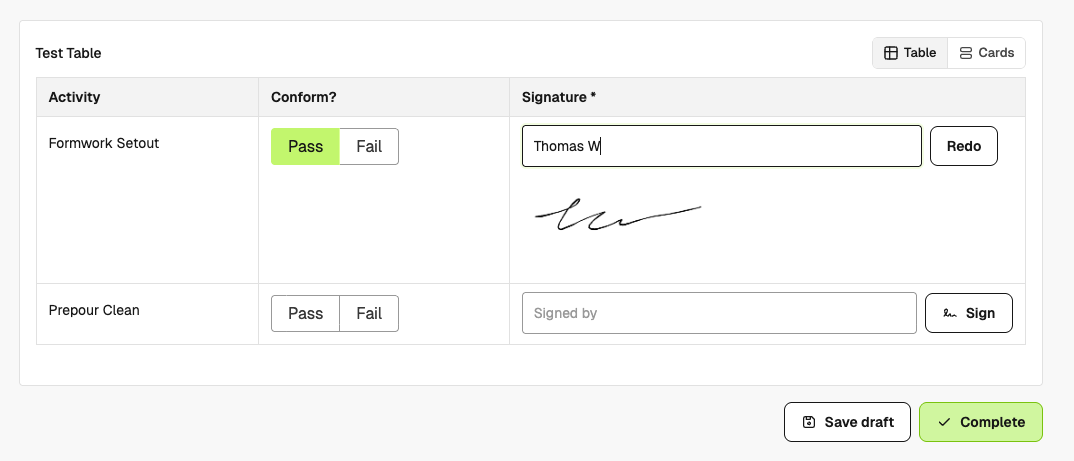
Form response with a table of prefilled activity rows ready to complete

To get started, open Forms > Templates, create or edit a template and add a table.

Redesigned template editor

The template editor has a cleaner layout, so building out large templates is faster and easier to navigate. Open the preview pane while you build to see exactly what respondents will see, including a mobile preview - no need to kick off a test form.

Improvements

  • Client Portal Share RFIs with your clients - pick all clients or selected portal members, and they get read-only access to messages, accepted responses, attachments and impacts on a searchable RFI page. You can change the audience or stop sharing any time, and see when a shared RFI has been viewed. Available on projects with both RFIs and Client Portal enabled.
  • Documents Upload more file types - PowerPoint, ZIP, Outlook emails, Microsoft Project and CAD/BIM formats like DWG, IFC and Revit - stored as download-only files, up to 1GB each on Premium and Enterprise plans.
  • Forms Dropdowns with more than five options are now searchable, so picking from a long list of trades or activities takes one keystroke instead of a scroll.
  • Drawings Link a markup directly to a punch, so items you flag on a drawing can be tracked and closed out from the Punches module.
  • Markups can now be linked to an existing RFI, not just used to raise a new one.
  • A new navigation menu next to the drawing title lets you move between folders and sheets without a full page reload.
  • Compare two revisions in the worker app with a color overlay - blue for what's new, red for what's gone.
  • Download a single drawing from worker web and public share links, and drawing-approval emails to subcontractors now link straight to the drawing.
  • Sign-ons Workers can sign on and off in the app with no signal - entries queue on the phone and sync automatically when coverage returns.
  • Signing on now walks workers through outstanding requirements - tickets, orientations, JHA, notices - on web and in the app, instead of stopping at a blocked screen.
  • Daily Logs Auto-created diaries now pre-fill the day's actual weather on projects with an address.
  • Actions Photos added to worker actions now appear in the project Photos gallery.
  • Photos Gallery uploads support WebP images, and photo stamps now show in the gallery preview, not just on downloaded images.
  • Messaging Target workers currently signed on and see who can't receive an SMS before you hit send.
  • Scheduling Export your schedule as a table-style PDF, alongside the existing timeline export.
  • Orientations Bulk orientation exports now include the tickets and certificates captured at orientation time.
  • Insurance CSV and PDF exports now include the insurance type and review comments.
  • Tables Your column layout and order now save to your account and follow you across browsers and devices.
  • Companies Managers can now archive companies, and duplicate companies can be merged into your own subcontractor record.
  • Notifications The unsubscribe page now lists every notification you've unsubscribed from so you can resubscribe, and admins can see when a message didn't send because the recipient had unsubscribed.
  • Navigation The sidebar now collapses fully - drag it all the way to the left, and a chevron brings it back.
  • SDS Bulk upload Safety Data Sheets - add a whole batch at once from Documents > SDS.

Fixes

  • Timesheets Editing an entry opens in a side sheet as day cards, so you can adjust a whole week without hopping between modals.
  • Sign-on windows for night shifts now resolve to the right date.
  • The review queue covers every project, and the table scopes correctly when a project is selected.
  • Links straight to a timesheet open the right entry.
  • Drawings Large drawings now open reliably on iOS in the worker app.
  • Navigation The worker app's back button now steps back within a module instead of jumping to Home.
  • Certifications HEIC photos now upload for certifications and tickets from the worker app.

BuildPass API

Self-serve API access is live - create your own API keys and start building without waiting on support. Recent additions:

  • Punches New read endpoints to list and retrieve punches, with filtering.
  • Photos Full photo management - upload attachments, create and organize photos and folders, plus external gallery sync.
  • Lists are now paginated (25 per page by default), so integrations should page through results.
  • Meetings Create and manage meetings and their notes, with filtering by project, status and dates.
  • Attachments Direct uploads through presigned URLs for images up to 40MB.

Full details and request examples are in the API changelog.
Drawing markups, measurements, and navigation

Mark up your drawings directly in BuildPass - no more exporting a sheet, redlining it in another tool, and re-uploading. Draw straight onto the drawing, then control exactly who sees each markup.

The markups toolbar gives you:

  • Pins to flag a spot on the drawing
  • Shapes and clouds to ring an area
  • Freehand to sketch anything by hand
  • Text to note instructions in place
  • Measurement to take dimensions off the sheet

Measure to a calibrated scale

Calibrate a known distance once - set a line on the drawing to its real length - and BuildPass scales the rest. From there, measure openings, setbacks, and clearances straight off the sheet, with the calibration saved against the drawing so it's ready next time you open it.

To get started, open any drawing, choose the measurement tool, and hit calibrate.

Control who sees each markup

Every markup starts private, in your Personal list, so you can think a drawing through before anyone else sees it. When it's ready, publish it to Admins (you and other admins, hidden from workers) or to Everyone (admins, your workers, and anyone with a public link).

  • Workers can view published markups and reply in the comment thread, on the app or the web
  • Public link viewers see the same published markups, without the comment threads
  • Only admins create markups; everyone else views what you publish

From Drawings, open any drawing and select the Markups tab, then Publish to choose who sees it.

Link, discuss, and lock

Link a markup to an RFI or another drawing so the context travels with it. Talk it through in the comment thread on each markup - your workers can reply, public viewers can't. Lock a markup to stop it being moved, resized, or deleted; any admin can unlock it again, so it's a safeguard, not a personal lock.

Select a markup on the drawing and it highlights in the sidebar, and the other way around, so you can always find the one you mean.

Move between drawings

Open the navigator from the icon next to the drawing title to jump across every sheet on the project without leaving the viewer. Go fullscreen for a clear, distraction-free space to mark up, and collapse the navigation to give the drawing the whole screen.

Available on Premium and Enterprise plans - reach out via live chat if you'd like this enabled.

Track delays in Scheduling

Require a reason every time a task slips, so you know what's driving delays and can report on them. When delay tracking is on and someone pushes a task to a later date, BuildPass prompts them to tag a reason before the change is saved - no more dates moving silently.

How delay tracking works

When a task is moved to a later date, a Reason for delay required prompt appears before the change can be saved:

  • Pick a delay reason from your own tags - Material Delay, Weather, Sub No Show, QA Check Failed, or whatever suits your team
  • See which downstream tasks the slip impacts before you commit
  • Add an optional note for extra context
  • Save the new date, or cancel to leave the task where it was

If no reason is selected, the task reverts to its original dates, so nothing slips without an explanation. Every confirmed change is captured as an audit record of what moved, why, and who made it - giving you structured delay data you can report on, like how many slips a build had and what caused them.

Setting it up

Delay tracking is configured in two places:

  • Delay reason tags (admin): Set up your list of reasons in Scheduling global settings. They pull across every project so reasons stay consistent.
  • Per schedule: Turn on Reason required to change date under Delay Tracking in a schedule's settings. It's per project and per schedule, so you can switch it on once a site manager takes over the running schedule rather than during planning. Turning it on also enables Critical path view, so critical tasks are highlighted in red.

To get started, set up your delay reasons in Scheduling global settings first, then open any schedule, go to Settings > Delay Tracking, and switch on Reason required to change date.

Client Portal, BuildPass Agent, and MCP

Client Portal

Share project progress with your clients from inside BuildPass, instead of stitching it together over email and chat. The new Client Portal gives builders a controlled, read-only view of the items they choose to share - daily logs, drawings, documents, photos, schedules, and form responses.

There are two ways to share:

  • Share specific items - a photo, a drawing, a form response, or an individual daily log - one at a time.
  • Share a folder once and any future photos, drawings, or documents dropped into it are shared automatically.

Admins can also:

  • Invite clients by email and name, and resend invites if needed.
  • Impersonate a client to preview exactly what they'll see before sharing.
  • Send updates from the Updates tab - standalone, or tied to a shared item - and edit them after sending.

Clients sign in by mobile phone number, with no usernames or passwords. Once in, they see the latest shared items on their project overview, updates from the builder that link straight to the source item, and downloadable forms and reports. Anything you haven't shared simply doesn't appear.

Available on Value plan and above. Lite customers get a trial - reach out to enable it. To get started, open Settings > Client management and invite your first client.

BuildPass Agent

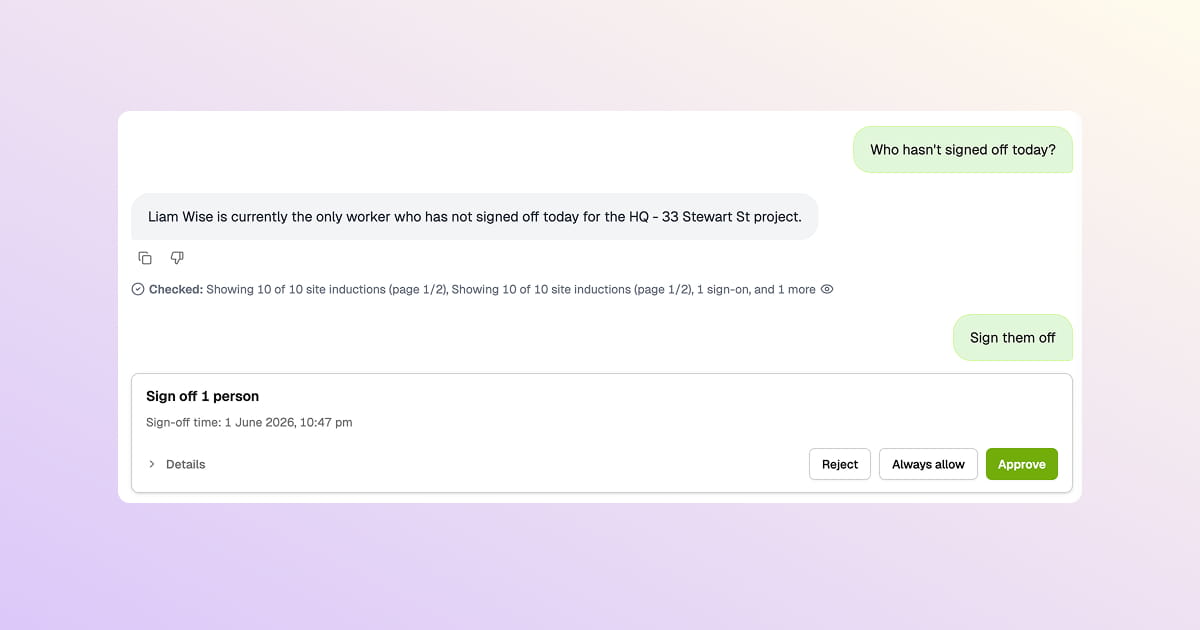
Find information, prepare reports, and complete admin work without clicking through every module. BuildPass Agent is the AI assistant native to the admin app - it works with your project context, reads the records you have access to, and helps complete real construction admin tasks across the product.

BuildPass Agent answering "Who hasn't signed off today?" and queueing a sign-off action for admin approval

Use BuildPass Agent to help with:

  • Finding project records, workers, companies, drawings, RFIs, actions, and site activity.
  • Drafting reports, summaries, charts, and CSV exports from BuildPass data.
  • Creating actions, punches, RFIs, subcontractors, and register items from pasted lists or spreadsheets.
  • Creating and updating reusable templates from source documents.
  • Working through forms, schedules, drawings, JHA, reports, and saved AI instructions.

BuildPass Agent follows your normal BuildPass permissions. If you can't access a project, module, or record, the agent can't access it for you.

To turn it on, open Settings > AI Tools, enable AI Tools, then enable AI assistant.

BuildPass MCP

Connect BuildPass to Claude and other AI hosts through MCP, so your team can drive BuildPass from the AI tools they already use. Once connected, Claude works against the same authenticated tool surface as BuildPass Agent - same permissions, same builder scope, same module access, same validation, and the same audit trail.

BuildPass and Claude logos connected by a bidirectional arrow, representing a BuildPass MCP connection

BuildPass MCP supports product-aware workflows for forms, templates, schedules, drawings, JHA, reports, AI memories, and safe project record updates.

To set it up, open Settings > MCP, copy the MCP URL or setup commands, then complete browser authorisation from your MCP client. The MCP settings page includes setup instructions for Claude Code, Codex, and manual MCP clients.

When should you use Agent vs Claude?

Use Agent when you're already working inside BuildPass and want AI help in context - on a project, in a module, mid-task.

Use Claude (or another MCP client) when you'd rather work from the AI tool your team already lives in - to pull BuildPass data into a wider conversation, mix it with your other tools, or run a workflow that spans more than just BuildPass.

Either way it's the same data, the same permissions, and the same audit trail - so you can pick whichever fits the moment, or use both.

Sign-ons bulk actions, column configuration, and saved views

Manage sign-on across multiple sites from one table that remembers how you work. Save filtered views, sign off or archive rows in bulk, and export the full history - the sign-on table is rebuilt for office champions managing scale.

  • Bulk actions - multi-select rows to sign off or archive in one go, with adjustable page size
  • Column configuration - choose which columns show in the table once for your whole team
  • Saved views - save filters, sorts, and column setup; right-click any view to edit it inline or copy a shareable link
  • Smarter filters - search by worker name or company without scrolling
  • Status at a glance - in-line review indicators; click any row for the underlying task detail
  • Richer exports - export the current page or every page across the full history
  • Refined type labels - table cells and CSV exports now use identical sign-on type wording
  • Inline feedback - report an issue or share an idea straight to the team via live chat

Open Sign-ons to give it a spin. In early access - reach out to enable it for your account.

Phone calls in BuildPass

Phone calls in BuildPass

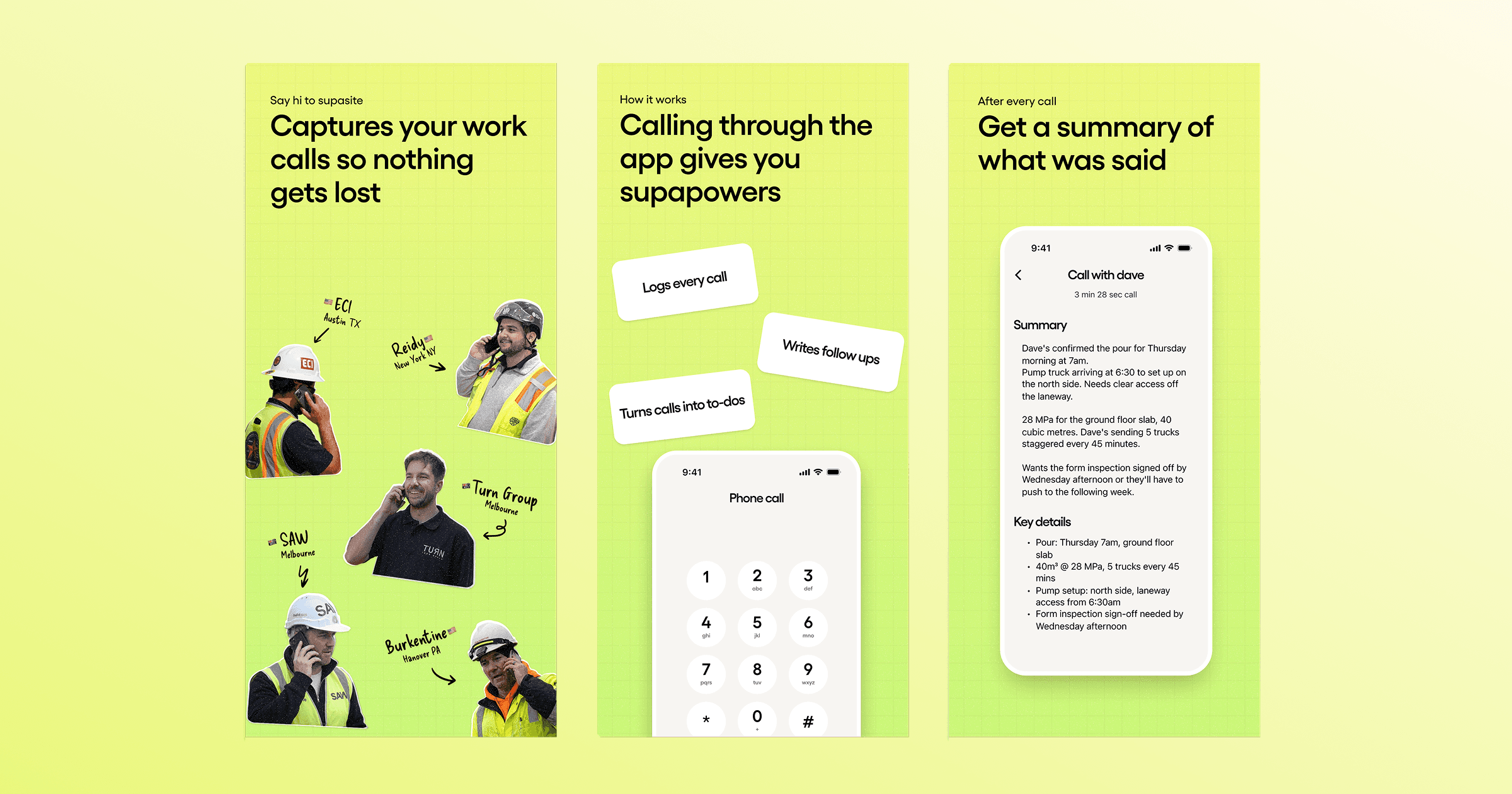
Capture inbound and outbound phone calls in BuildPass so the details do not disappear when the call ends. Supasite, a new app from BuildPass, brings your BuildPass contacts and projects into the call experience, gives you a dedicated work number to keep work and personal calls separate, then turns each call into notes, summaries, materials, and actions.

Use Supasite for the everyday calls that keep a job moving:

  • Material orders and supplier price checks
  • Progress updates and site visit scheduling
  • Quote details, scope changes, and team coordination
  • Anything else that needs a clear paper trail after the call

Calls land in your Supasite inbox with the important parts pulled out, so you can remember what was said without writing everything down while you are on the phone. When the call is ready, sync it back to BuildPass so the paper trail sits with the rest of your project history.

Align drawing revisions when pages don't line up

Align drawing revisions when pages don't line up

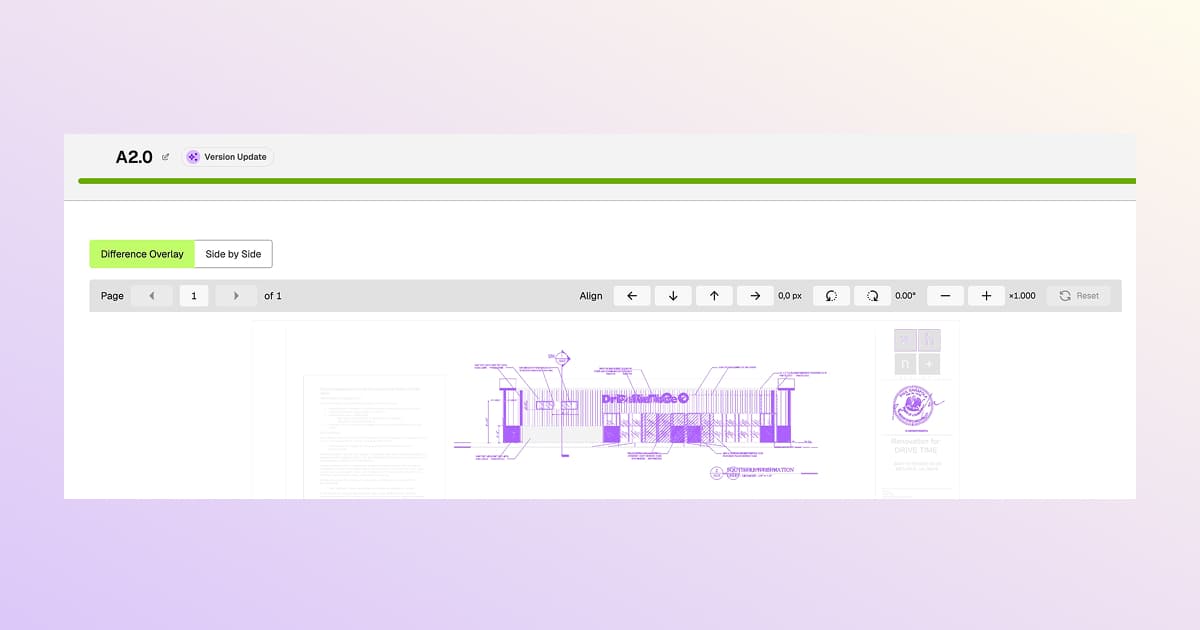
Align drawing revisions manually in the Difference Overlay so the diff highlights real changes, not pages that shifted a few pixels when the architect re-exported the PDF. Move, rotate, and scale one revision over the other until the underlays match, then let the overlay mark the true differences.

  • Move - nudge the revision up, down, left, or right with pixel readouts
  • Rotate - correct small angle offsets, with a degree readout
  • Scale - resize to match the other revision
  • Reset - restore the original alignment in one click

Alignments are per-page and aren't saved between sessions - if you close the diff and reopen it, you'll need to realign.

From Drawings, review an uploaded revision or compare two existing versions, switch to Difference Overlay, and use the Align controls above the sheet.

Available on Premium and Enterprise plans - reach out via live chat if you'd like this enabled.

Document share links, folder imports, and more

Document share links, folder imports, and more

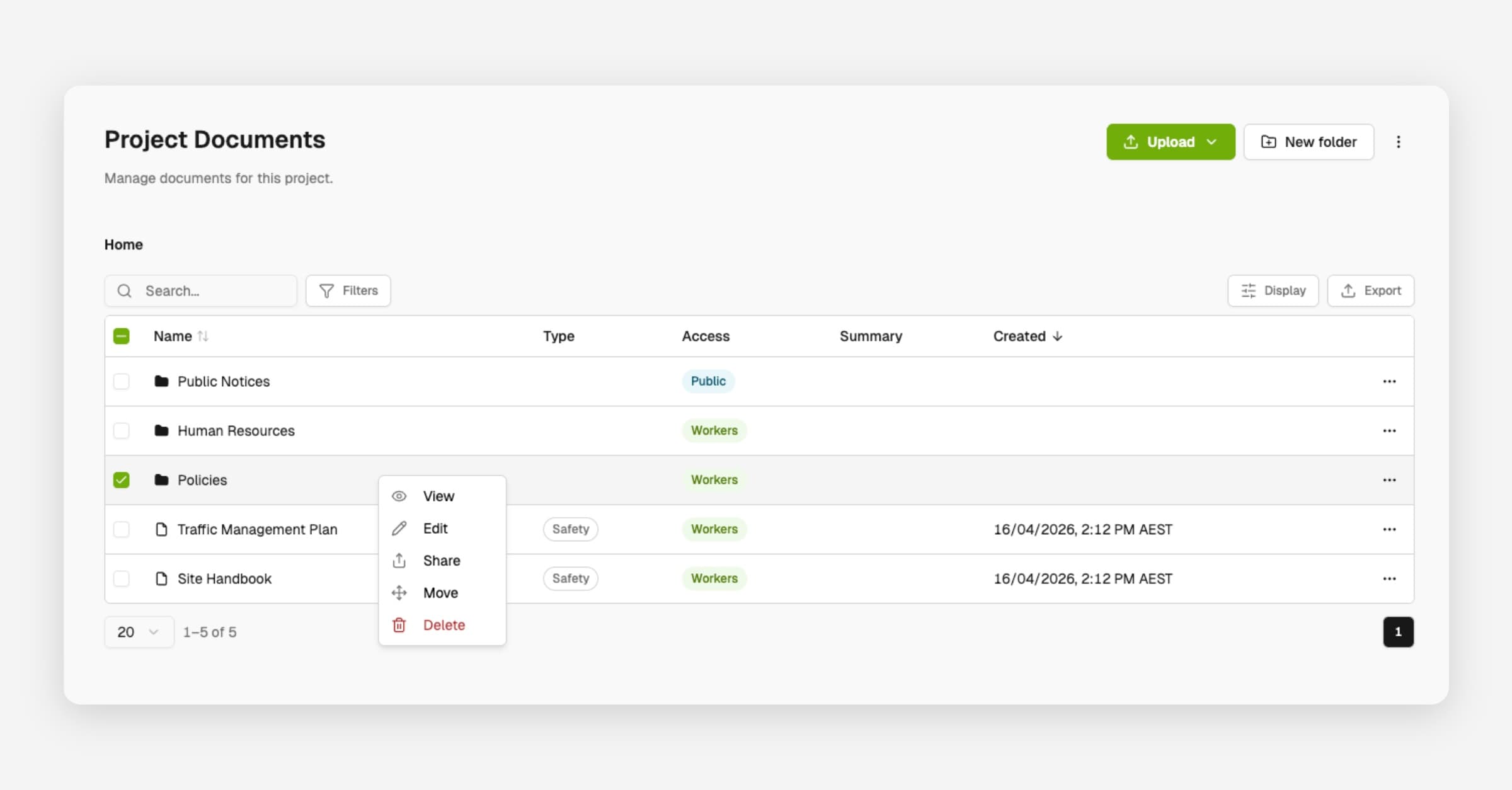
Share entire folders with public links any collaborator can open - subcontractors, consultants, head contractors - without a BuildPass account. This round of Documents upgrades also lets you import a folder structure from an existing project, cutting setup steps that used to repeat on every job.

  • Folder sharing - share entire folders with workers in one action instead of per-file
  • Public links - generate a link anyone can use to view a folder, even without a BuildPass account
  • Import folder structure - copy a folder tree from an existing project when setting up a new one, also available in the Drawings module

To get started, open Documents and pick a folder to share, or use "Import folder structure" from the project setup flow.

Scheduling critical path, columns, and lag times

Scheduling critical path, columns, and lag times

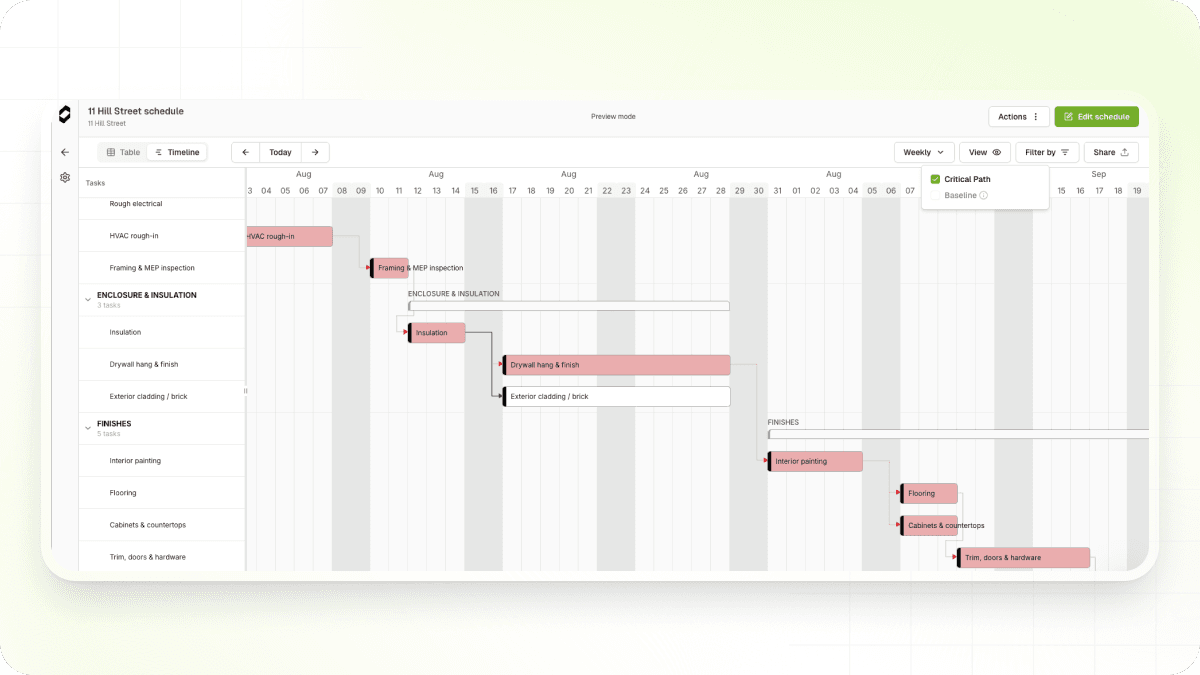
See which tasks directly control your project's end date with the new critical path view. When it's on, critical tasks and their dependency arrows are highlighted in red so you can spot risk at a glance.

Critical path

  • Toggle Critical Path on or off from the View menu (eye icon) in timeline view
  • Critical tasks and their dependency arrows are highlighted in red
  • Filter to show only critical tasks from the Filter panel, in both timeline and table view
  • The Baseline toggle has moved into the same View menu so display options live together

Try it by opening any schedule and clicking the View menu (eye icon) to toggle Critical Path.

Timeline columns

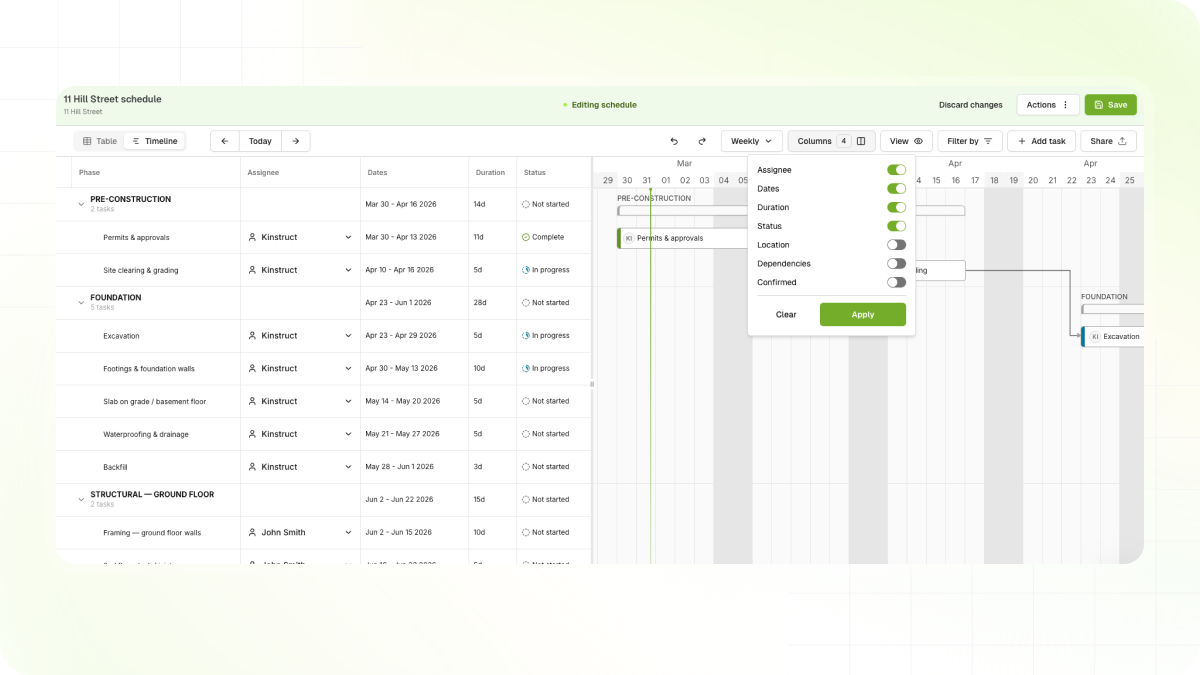
Choose which columns show alongside the timeline so you can see the details that matter most - status, duration, dates, or assignees - without opening each task.

Timeline view with configurable columns showing task status, duration, and assignees alongside the Gantt chart

  • Toggle columns from the Columns button in the top-right Gantt Actions Bar
  • Drag-and-drop column headers to reorder
  • Column order and visibility preferences are saved per schedule
  • Available columns include status, duration, start/finish dates, assigned contractors, and more

From Scheduling, open any schedule and click Columns in the top-right Gantt Actions Bar.

Lag and lead times

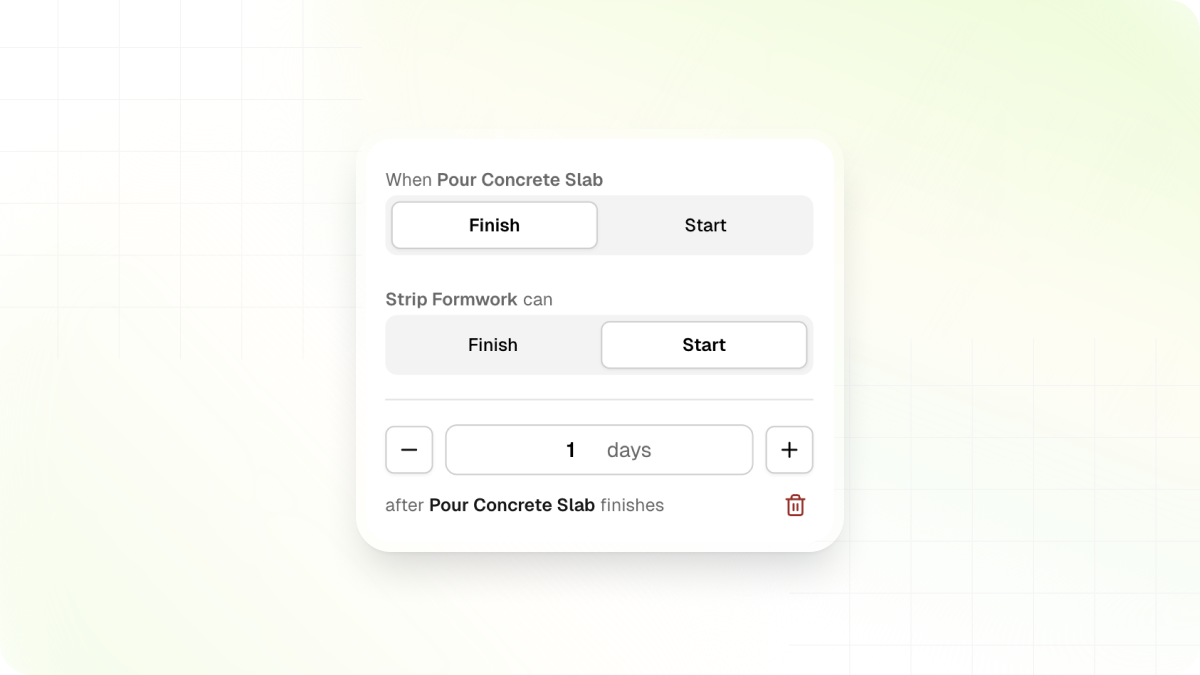
Model real-world dependencies where flooring needs time to cure before painting can start. Add lag (delay) or lead (overlap) to any dependency and dates update automatically across the schedule.

Add lag or lead times between dependent tasks in the scheduling detail panel

  • Add lag or lead values to any of the four dependency types: Finish-to-Start, Start-to-Start, Finish-to-Finish, and Start-to-Finish
  • Dependent task dates update automatically as offsets are applied
  • Drag tasks on the timeline to create gaps or overlaps, and offset values are calculated automatically

To get started, open a task's detail panel, find the dependency, and select "Add lag".

Drawing notifications

Drawing notifications

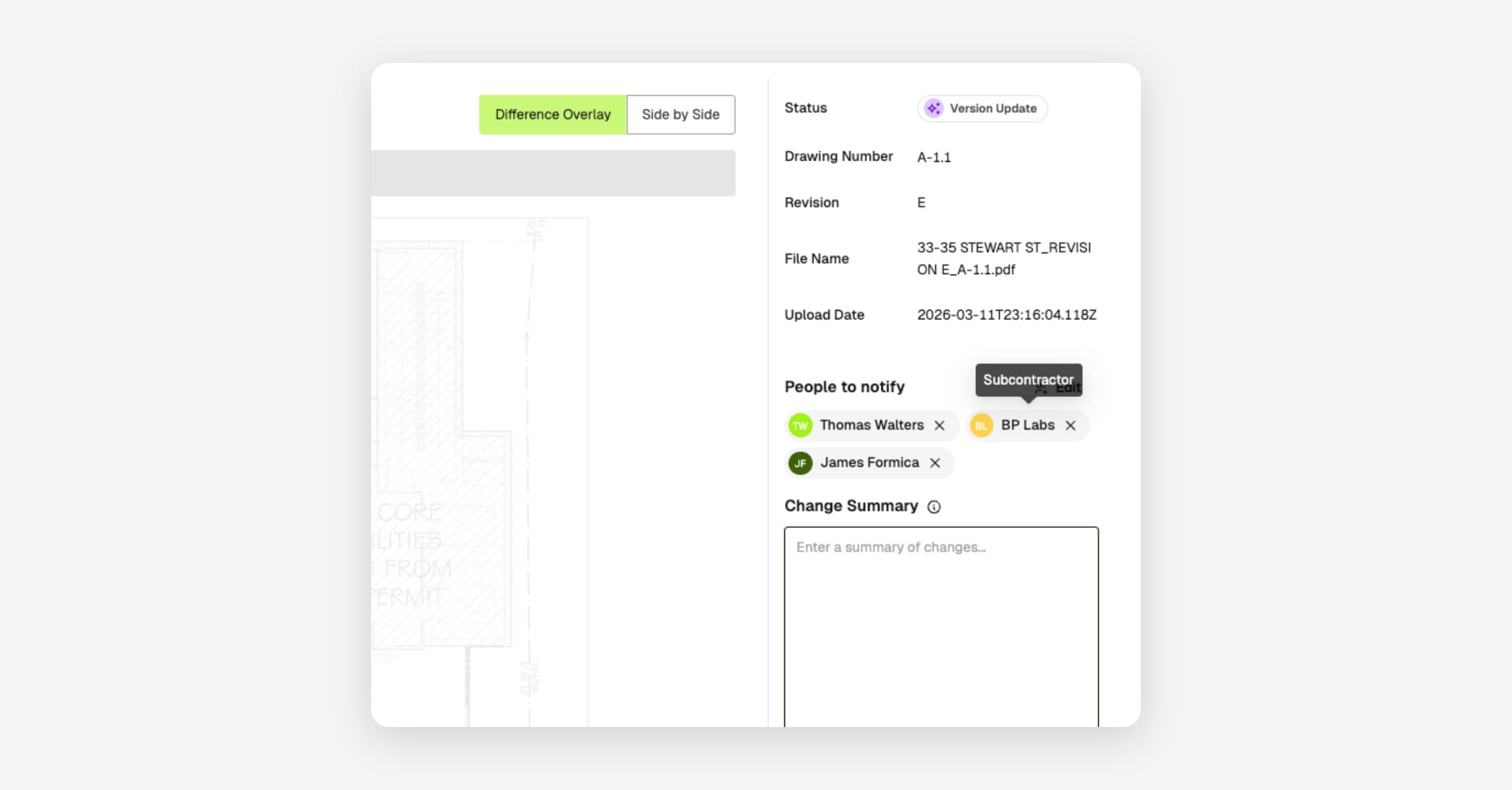
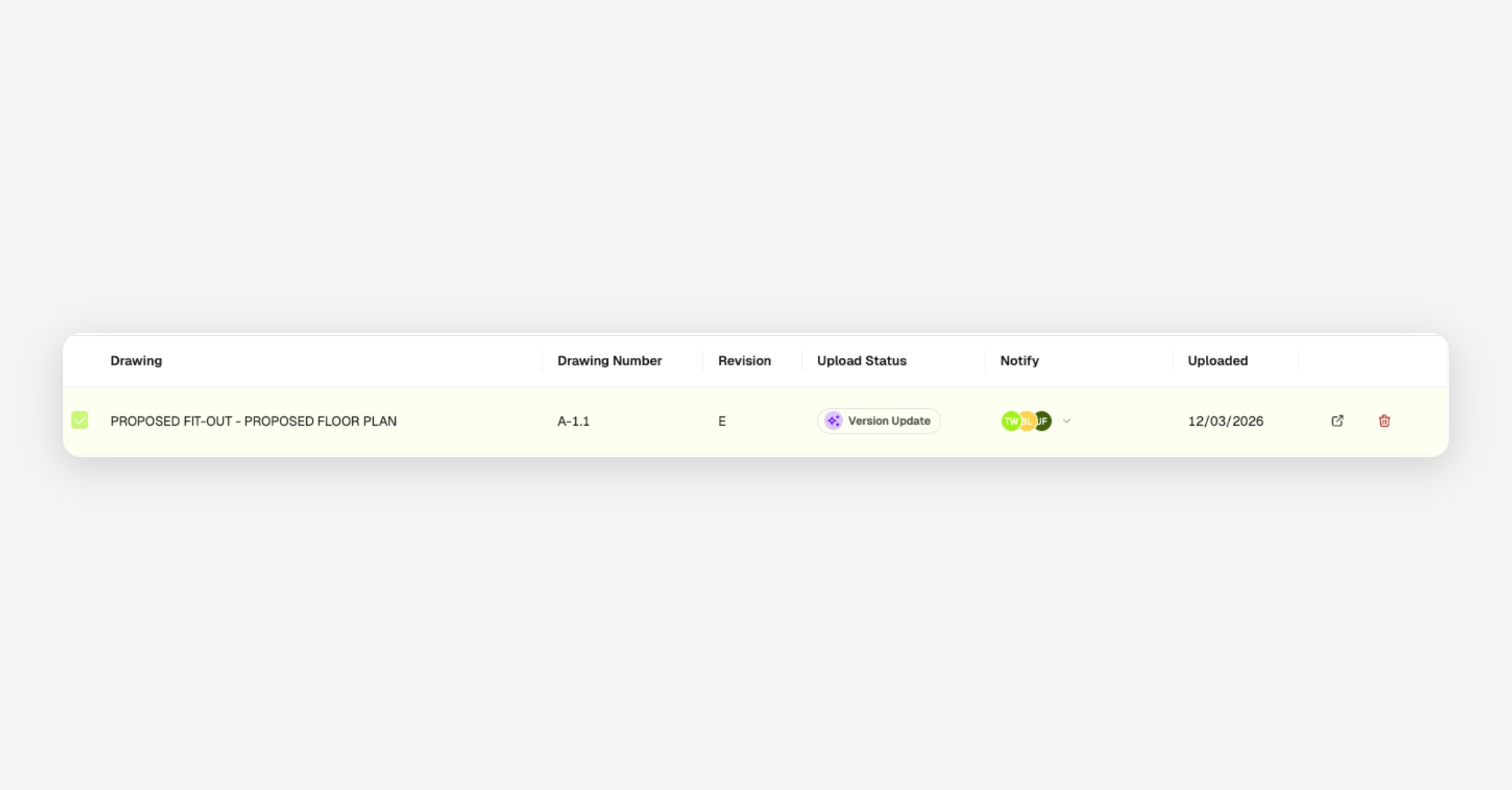
Keep your team in the loop when drawings are updated. Select the admins, companies, or workers to notify whenever you upload new or revised sheets, and they'll get an email or SMS with the details.

  • Select which admin users, companies, or workers should be notified after uploading
  • Multiple drawings uploaded at once are grouped into a single notification
  • Admins receive an email; companies receive email or SMS depending on contact details on file; workers receive an SMS

Drawing upload flow showing the recipient selection prompt after files are uploaded

What recipients get

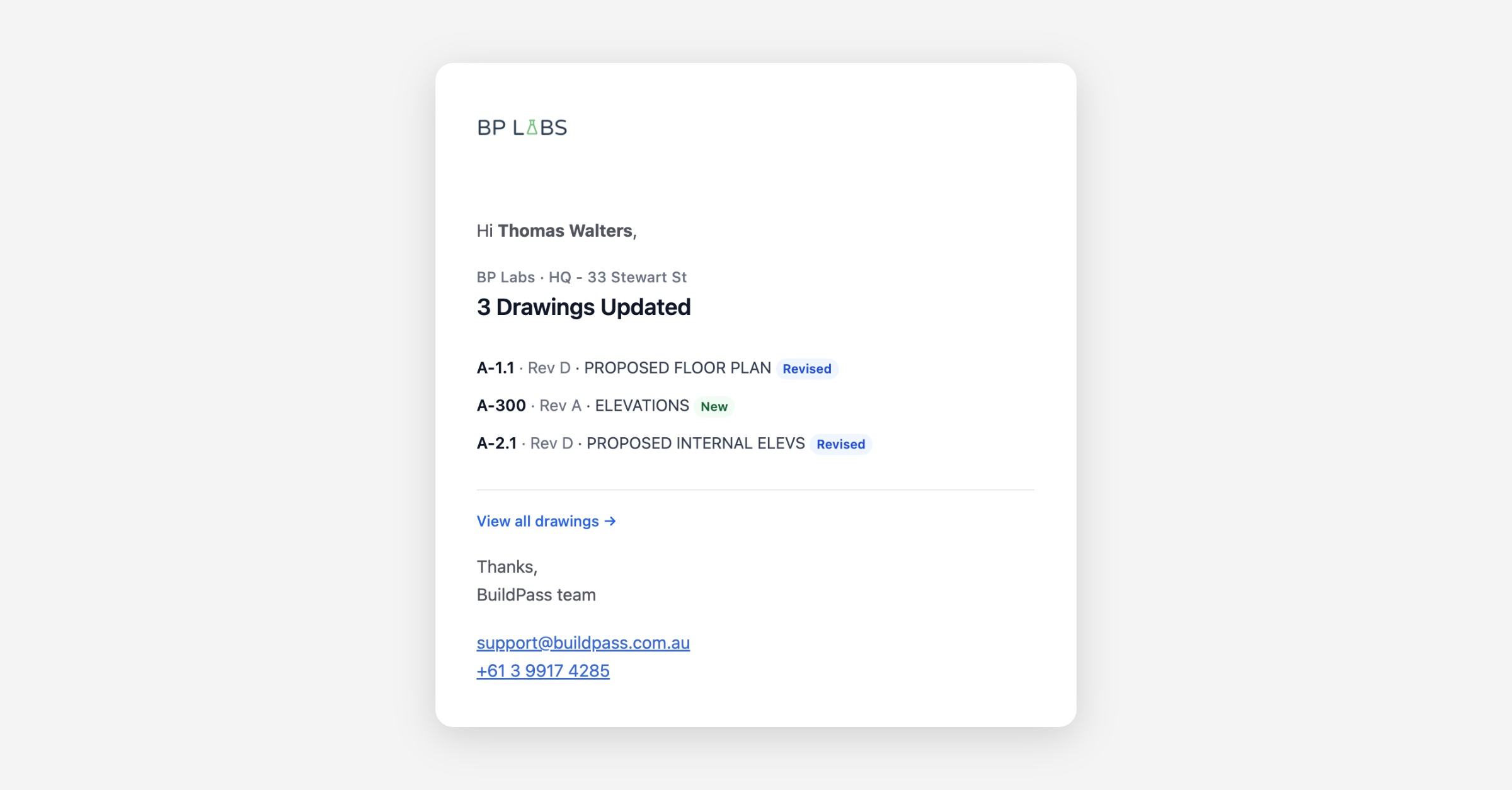
Each notification includes the project name and a breakdown of every drawing updated, showing the drawing number, revision, title, and whether it's new or an updated revision.

Drawing notification email showing the list of updated drawings with revision numbers

From Drawings, upload your files and select recipients from the notification prompt.