Scheduling baselines, sub-tasks, live links, and cross-project calendar
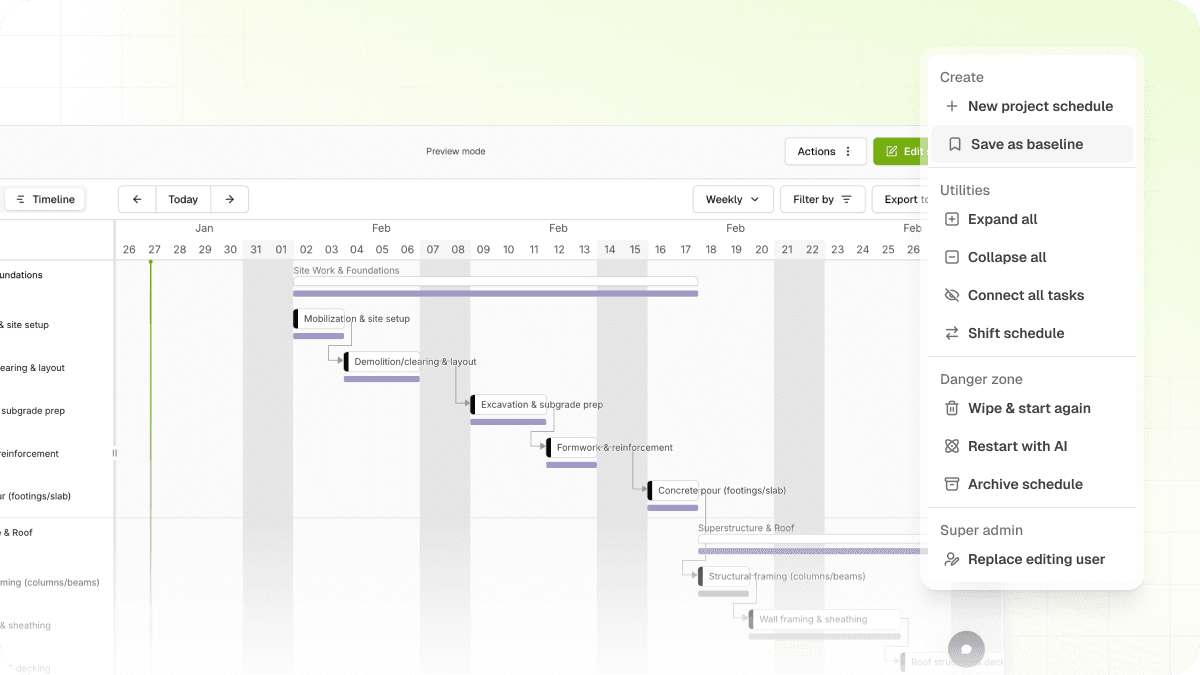
Save your original plan as a baseline so you can compare against current progress and back up extension-of-time claims with evidence. Alongside baselines, this update adds a multi-project schedule calendar, sub-tasks, and schedule live links for external stakeholders.
Baselines
- Save schedule snapshots from the Publish page or Actions menu
- View baseline bars on the Gantt chart to compare against current tasks
- Toggle baseline visibility on or off through Filters
- Replace an existing baseline by saving a new snapshot
From Scheduling, open the Actions menu and select "Save as baseline", or enable "Make this a baseline" when publishing.
Multi-project schedule calendar
See workload across every project schedule in a single view so you can spot conflicts without switching between schedules.
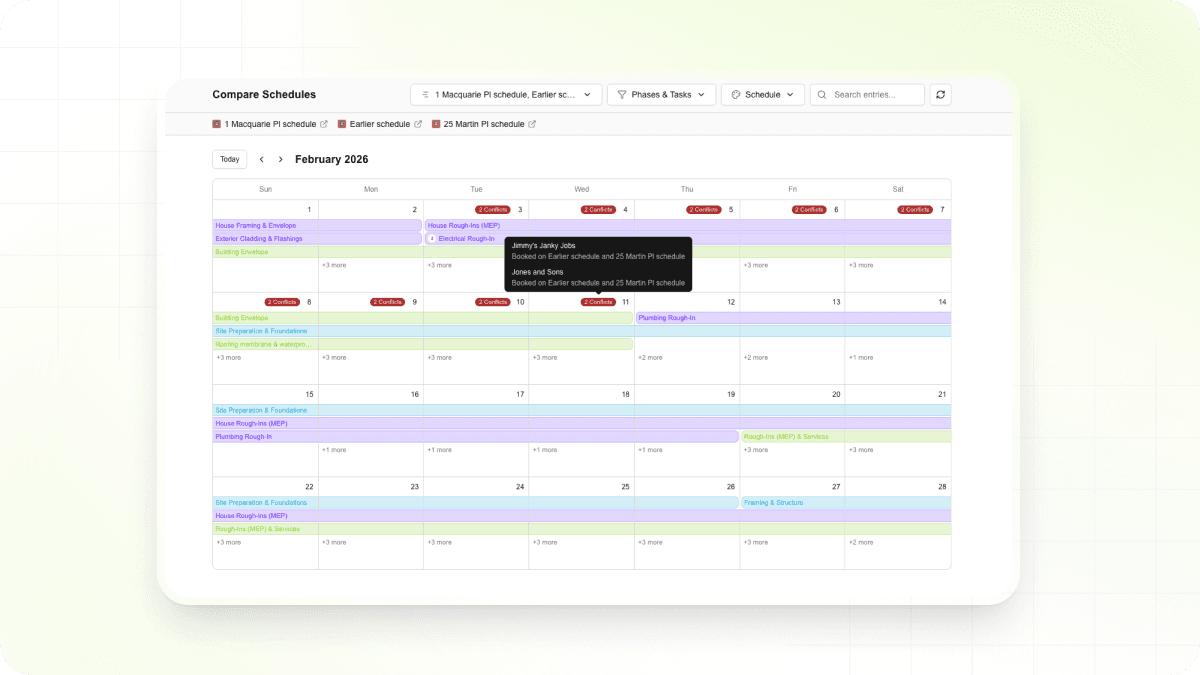
- Toggle between phases only, tasks only, or both
- Color-code by schedule, status, or assignee
- Assignee conflict indicators when the same person is scheduled on overlapping tasks
- Search for specific phases or tasks by title, with tooltips for task details and conflicts
Try it from the Scheduling list view by clicking "Compare schedules".
Schedule live links
Share real-time schedule progress with anyone - clients, consultants, head contractors - without exports, screenshots, or logins.
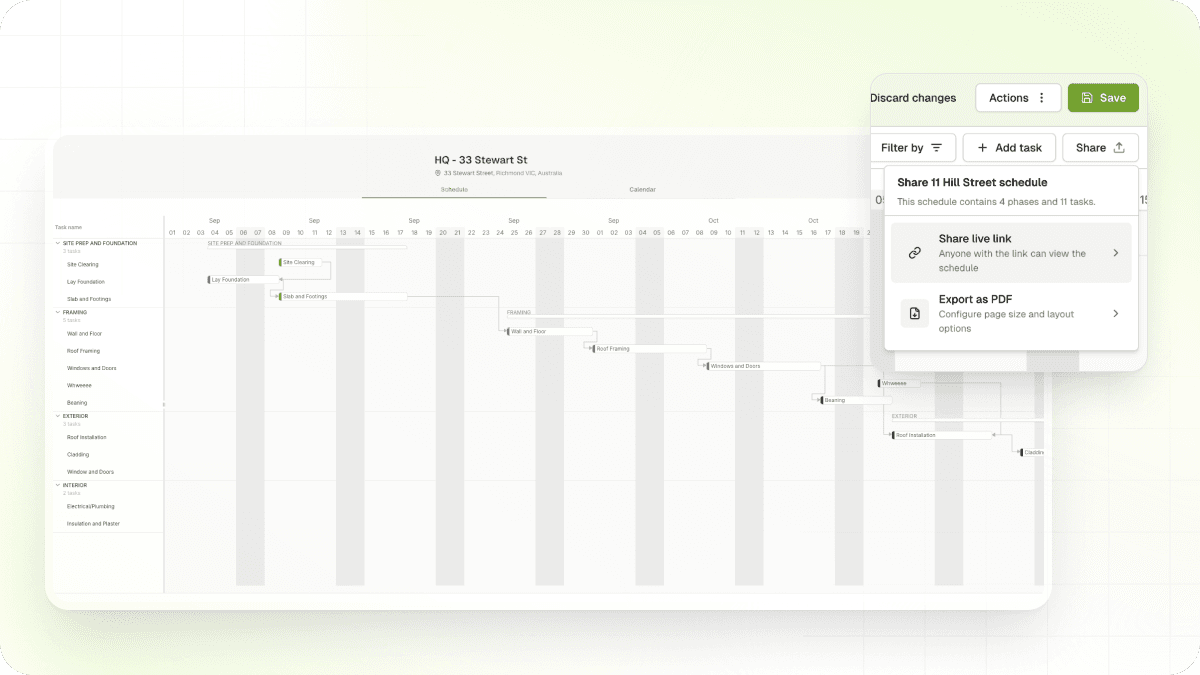
- Generate a shareable live link for any schedule
- Recipients see the full timeline, task statuses, and progress
- Recipients can't edit or see assignee information
- No login or BuildPass account required
To get started, open any schedule, click Share, and select "Share live link".
Sub-tasks
Model work at the right level of detail by nesting sub-tasks up to 5 levels deep under any parent task.
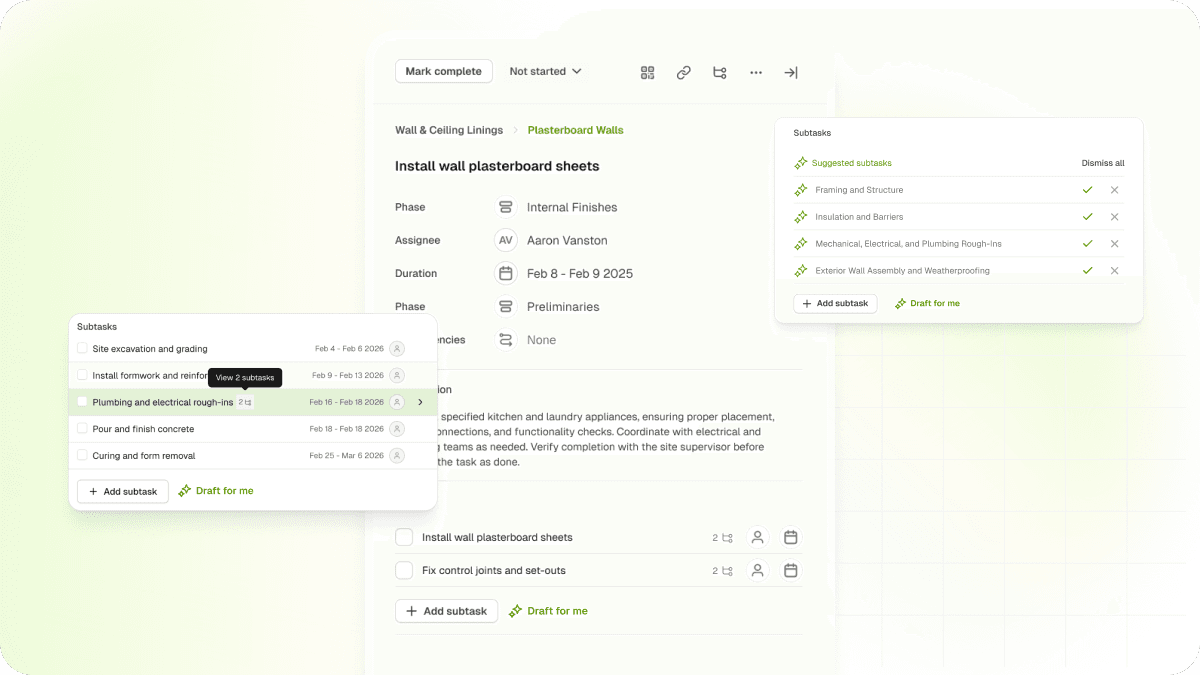
- Nest sub-tasks up to 5 levels deep under any task
- Add sub-tasks inline with title, assignee, and date fields
- AI-powered draft sub-tasks to help you get started
- Sub-task counter badges on parent tasks, breadcrumb navigation, and drag-and-drop reparenting
From any task, click "Add sub-task", or drag tasks to nest them.